> ## Documentation Index
> Fetch the complete documentation index at: https://docs.synq.io/llms.txt
> Use this file to discover all available pages before exploring further.
# Creating an owner
### Create an owner
1. Navigate to `Owners` and `Create an owner`
2. Name the owner (e.g., `product analytics`)
### Link ownership with Slack
Linking an owner to Slack enables you to send notifications to a dedicated Slack channel and tag the relevant owner(s) in Slack based on their Slack handle.
1. Click `@Add Slack`
1. If it’s your first time setting up Slack, click `Connect to Slack` to grant the necessary permissions. See more in [Slack integration](/slack/slack)
2. Select a Slack channel from the drop-down list to send notifications.
3. Select one or multiple Slack user handles or Slack user groups to be notified of issues on assets owned by them (optional).
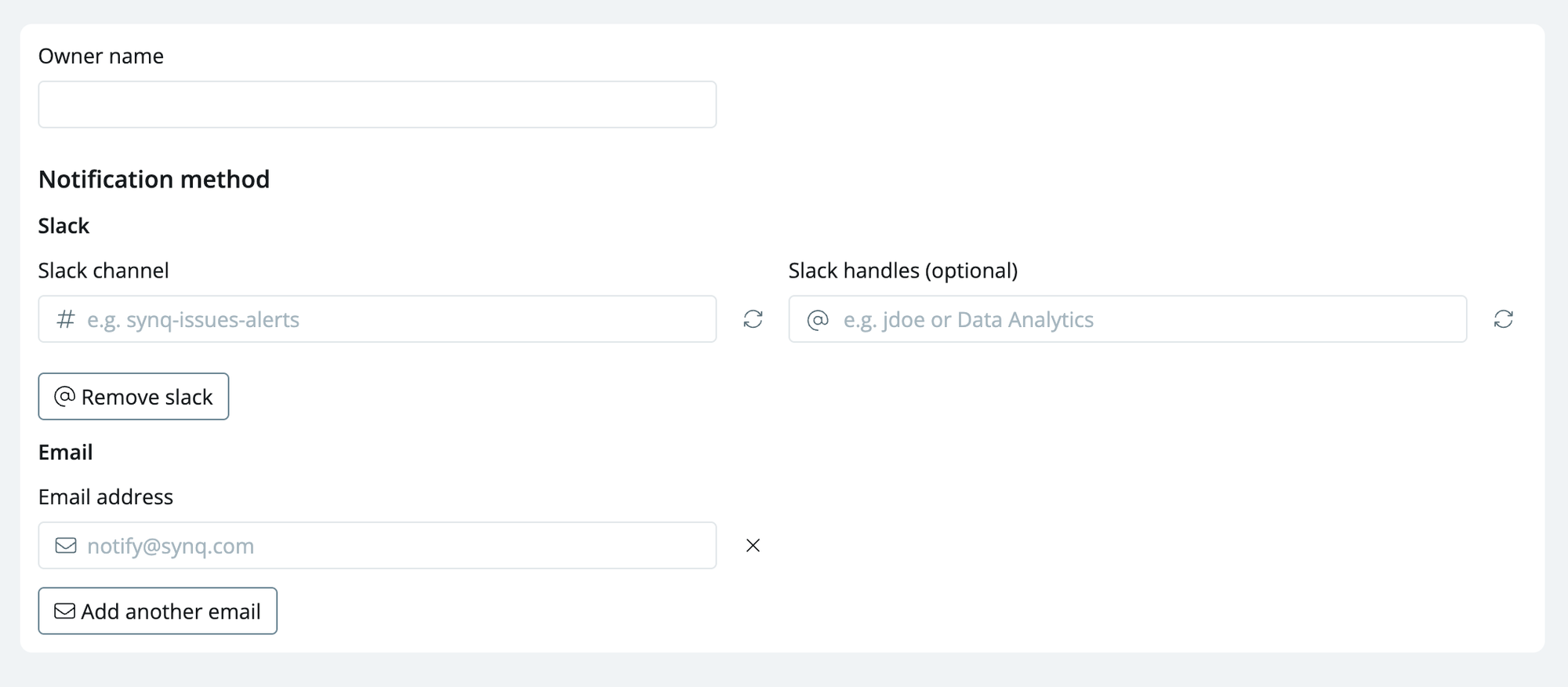 If you want to send alerts to a private Slack channel, you must first type `@Coalesce Quality` in the private channel and invite the app.
### Link ownership with email
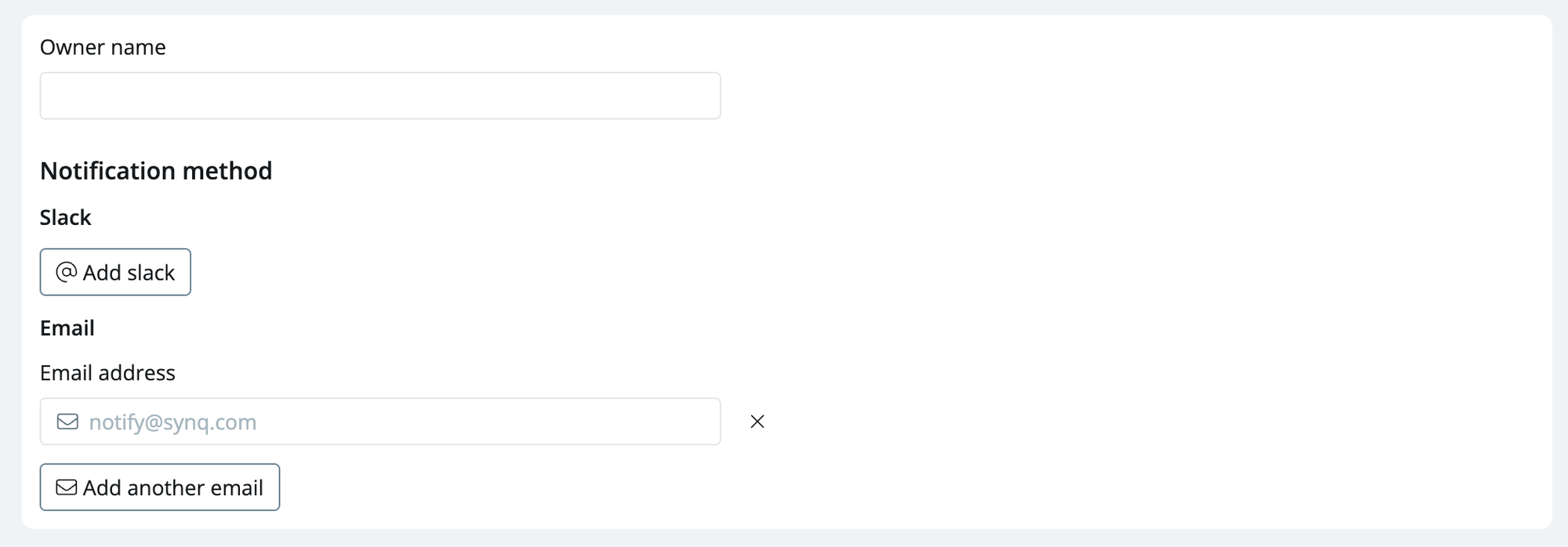
Linking an owner with one or multiple email addresses lets you notify the relevant owner(s) via email.
1. Click `Add Email` to link an owner to an email address.
2. Click `Add Another email` to link an owner to another email address (optional).
If you want to send alerts to a private Slack channel, you must first type `@Coalesce Quality` in the private channel and invite the app.
### Link ownership with email
Linking an owner with one or multiple email addresses lets you notify the relevant owner(s) via email.
1. Click `Add Email` to link an owner to an email address.
2. Click `Add Another email` to link an owner to another email address (optional).
 ### Add assets to an owner
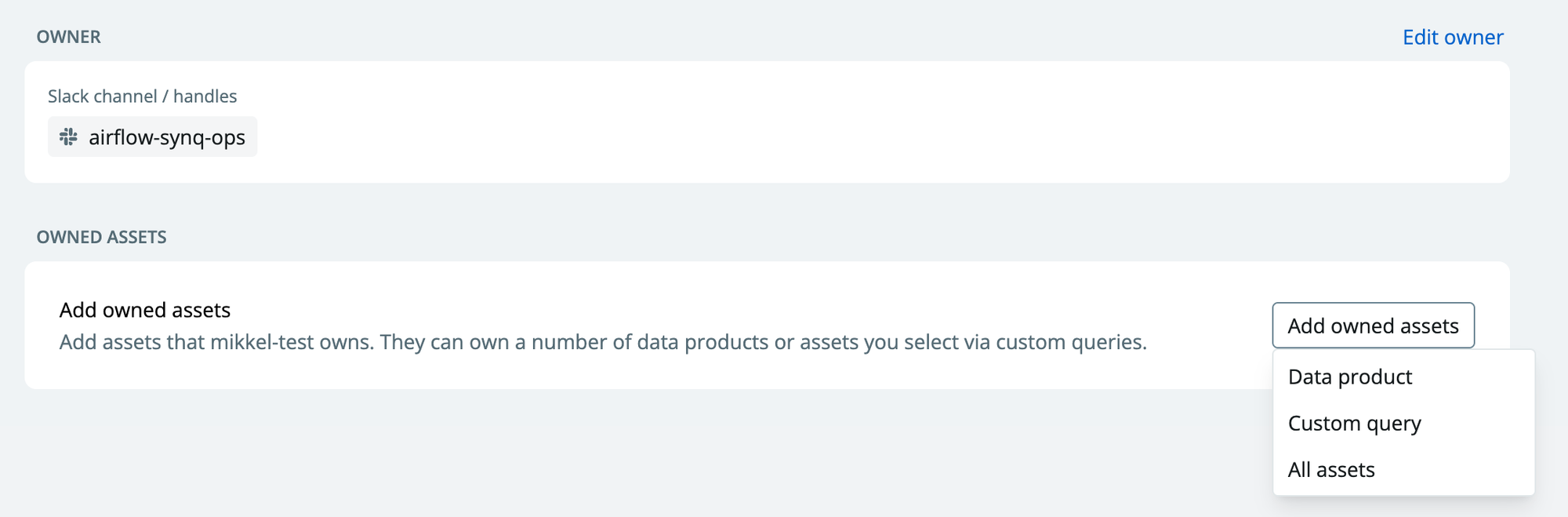
There are three ways to assign assets to an owner: (1) Data product, (2) Custom query, and (3) All assets.
1. Click `Add owned assets` and select one of the three options to add assets to the owner.
1. Data product—use this to attach an existing data product to the owner
2. Custom query—use this to specify assets using the browser or one of the other filter options
3. All assets—use this if you want to be notified of any issue in your workspace (e.g. if the owner is `data team`)
### Add assets to an owner
There are three ways to assign assets to an owner: (1) Data product, (2) Custom query, and (3) All assets.
1. Click `Add owned assets` and select one of the three options to add assets to the owner.
1. Data product—use this to attach an existing data product to the owner
2. Custom query—use this to specify assets using the browser or one of the other filter options
3. All assets—use this if you want to be notified of any issue in your workspace (e.g. if the owner is `data team`)
 ### Set alerts for an owner (optional)
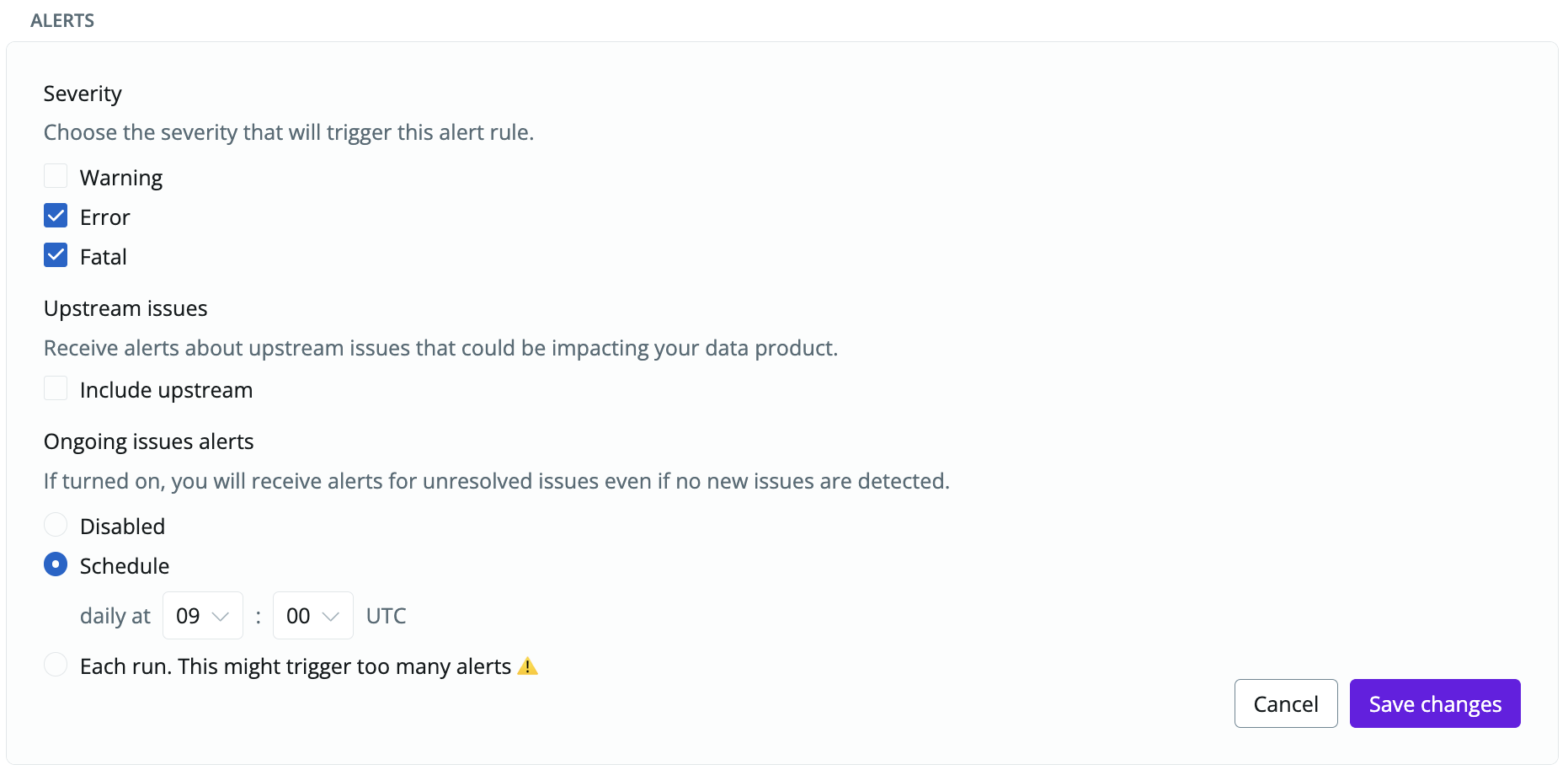
By setting alerts on an owner, the owner will automatically be notified in the specified Slack channel or email address(es) you specified
1. To enable alerts for the assets you selected for the owner, toggle `Setup alerts`
2. Set the options based on your preference and click `continue` to set up the owner
### Set alerts for an owner (optional)
By setting alerts on an owner, the owner will automatically be notified in the specified Slack channel or email address(es) you specified
1. To enable alerts for the assets you selected for the owner, toggle `Setup alerts`
2. Set the options based on your preference and click `continue` to set up the owner