Lineage
Lineage overview
Our lineage is built to be performant and work out of the box. This means you’ll automatically get column-level lineage from BigQuery, Snowflake, Redshift, and ClickHouse to Looker and Tableau with the ability to explore thousands of assets with sub-second latency. The lineage is helpful for core workflows such as
- Understand the downstream impact of an issue across dbt and your BI tools to decide the urgency at which you resolve it.
- Understand the downstream implications of making a change to a column upstream.
- Debugging a data issue to find upstream dependencies.
Understanding the downstream impact of an issue
-
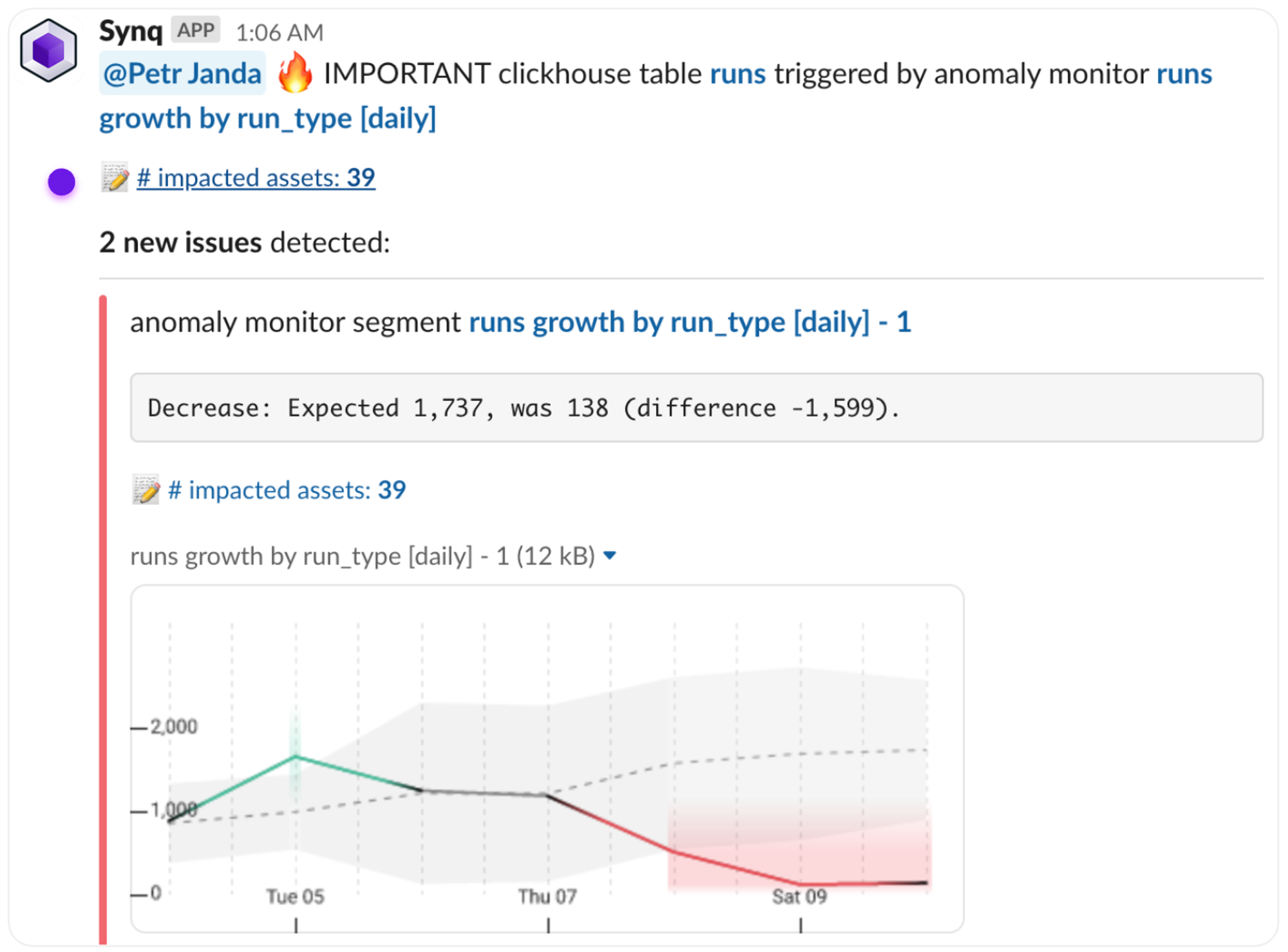
SYNQ alerts show the number of impacted assets. Clicking on the impacted assets brings you to the lineage view in SYNQ with these assets pre-filtered
-
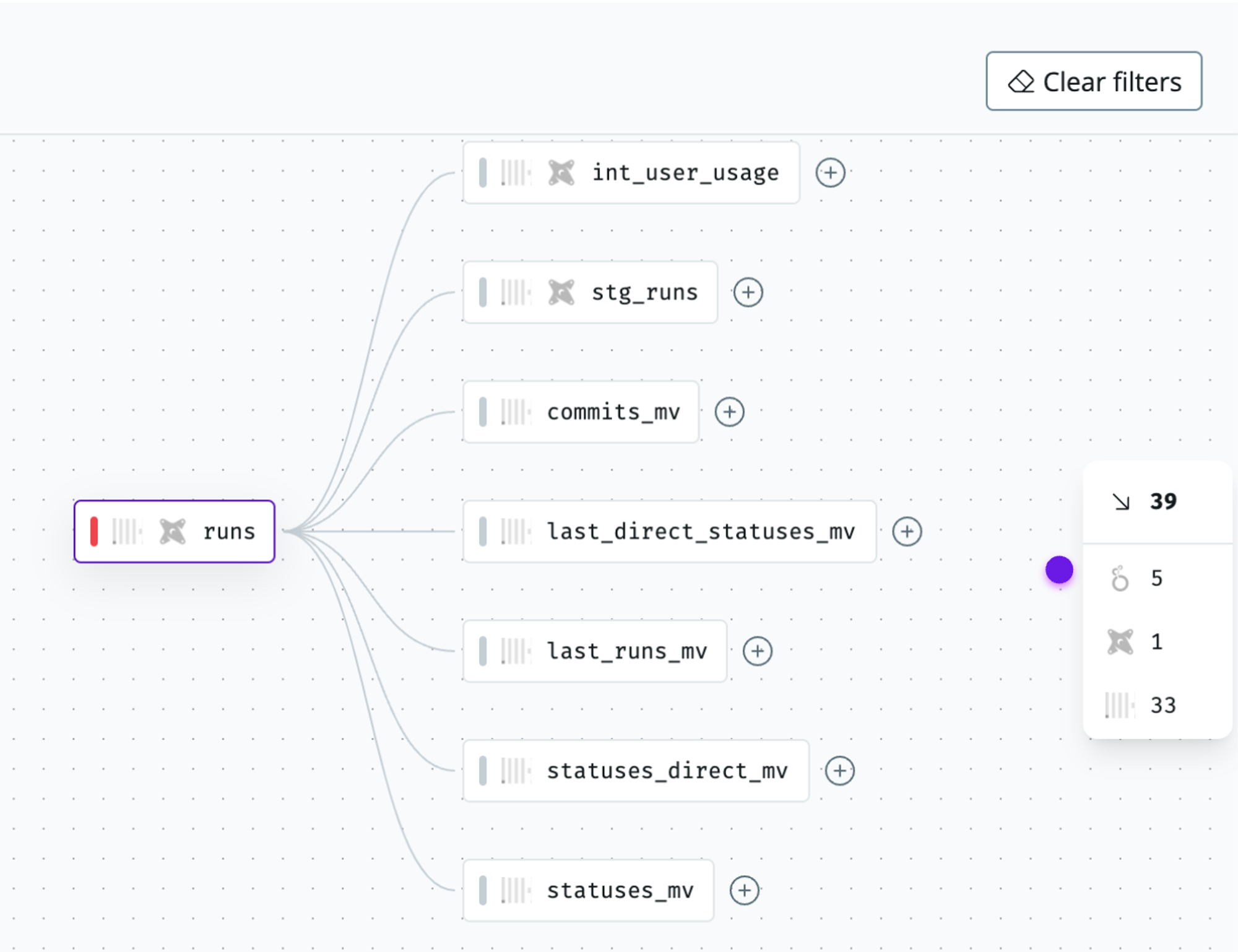
Use the sidebar to quickly filter down to specific assets downstream, such as a Looker dashboard.
Assessing the impact of making a change
-
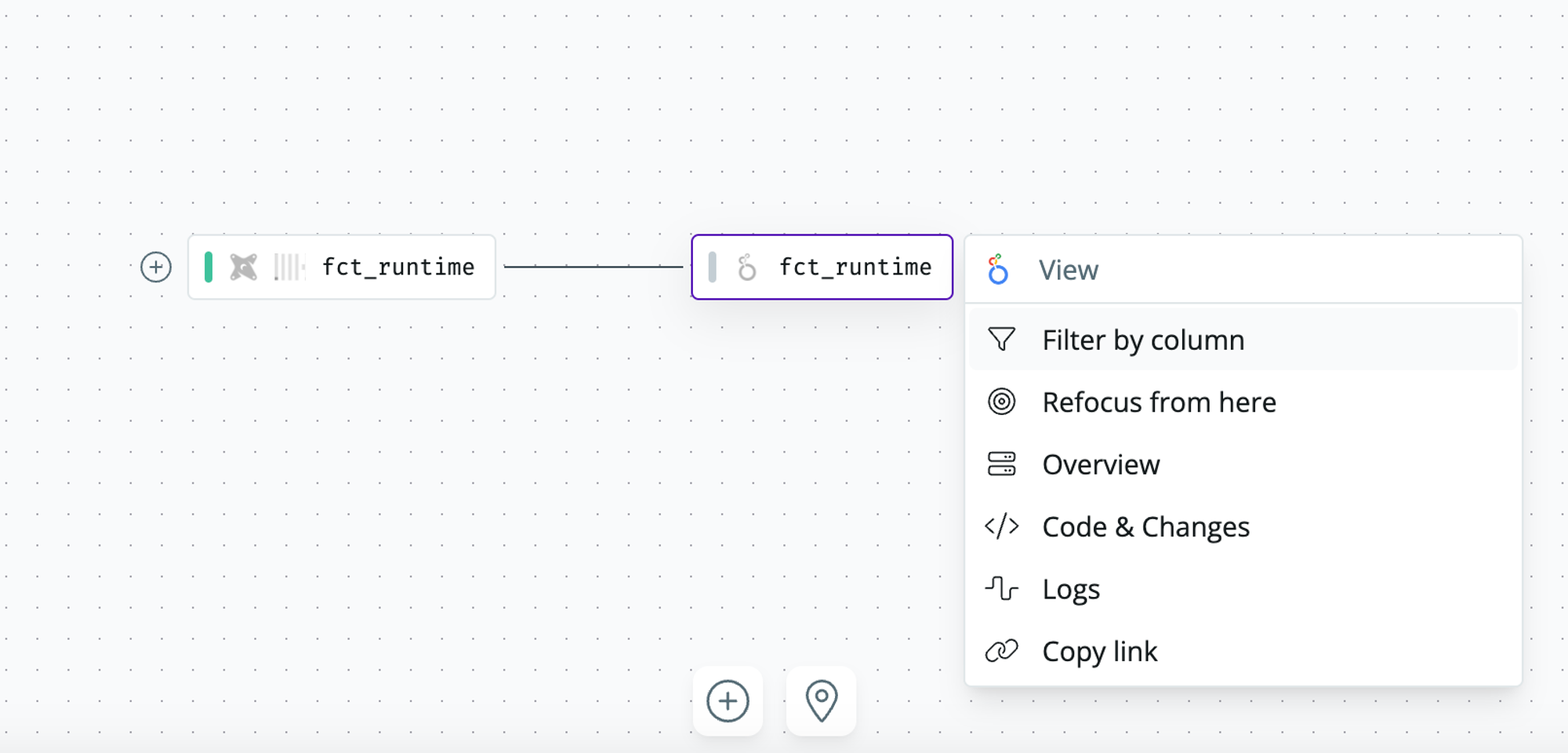
Navigate to the lineage for the table you’re about to change and click on the table name in the lineage to toggle
Filter by column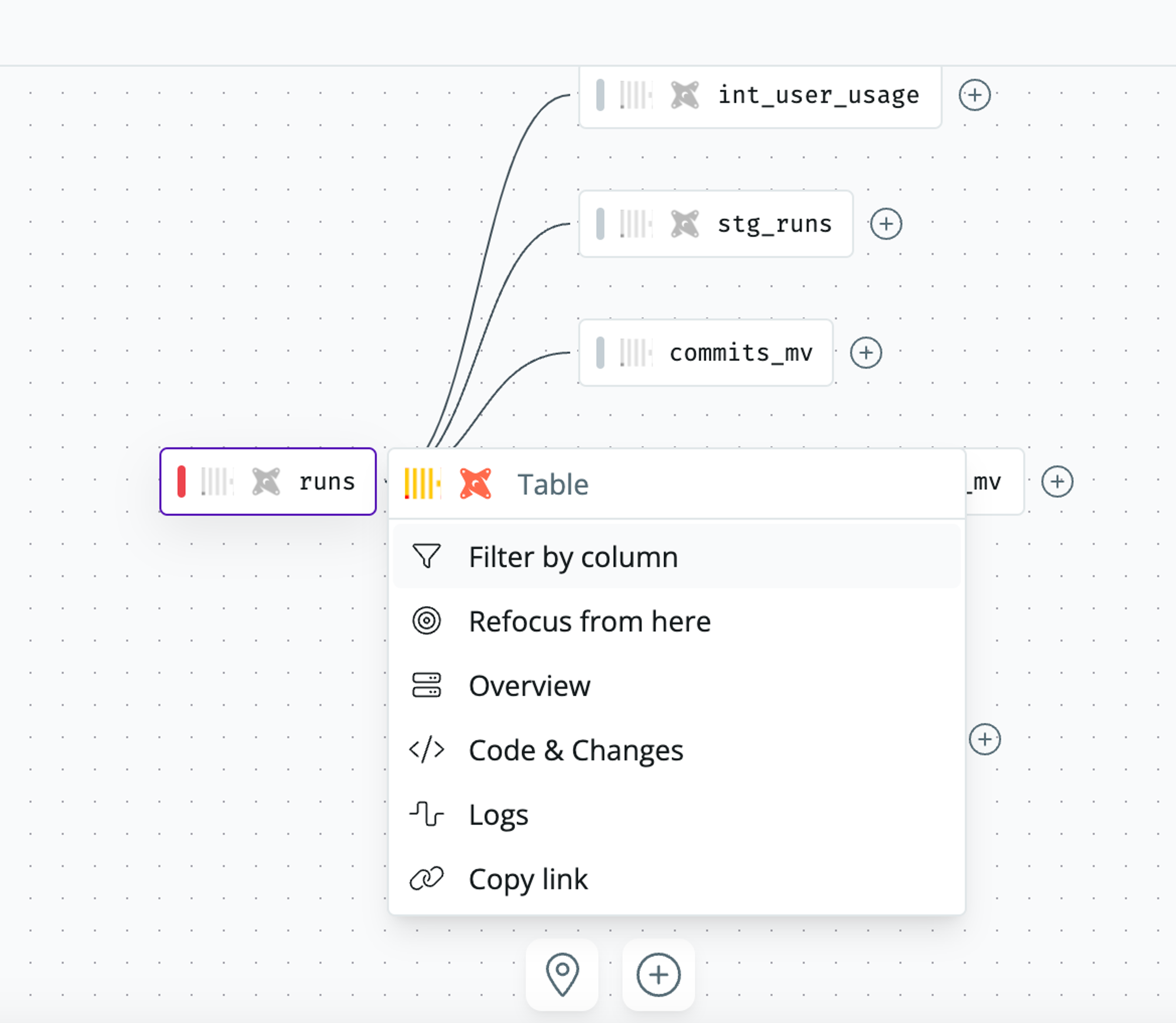
-
Filtering by a column lets you see all downstream assets where the column is being used. Click
Xto remove the column selection or+to expand the lineage.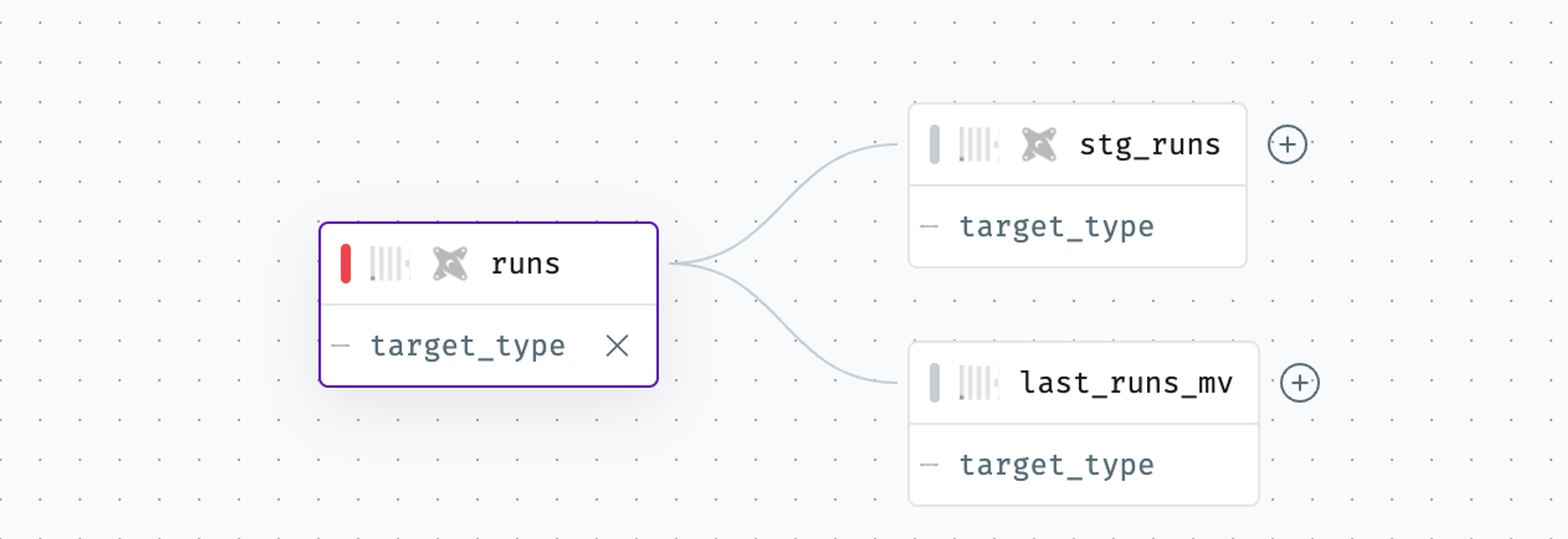
-
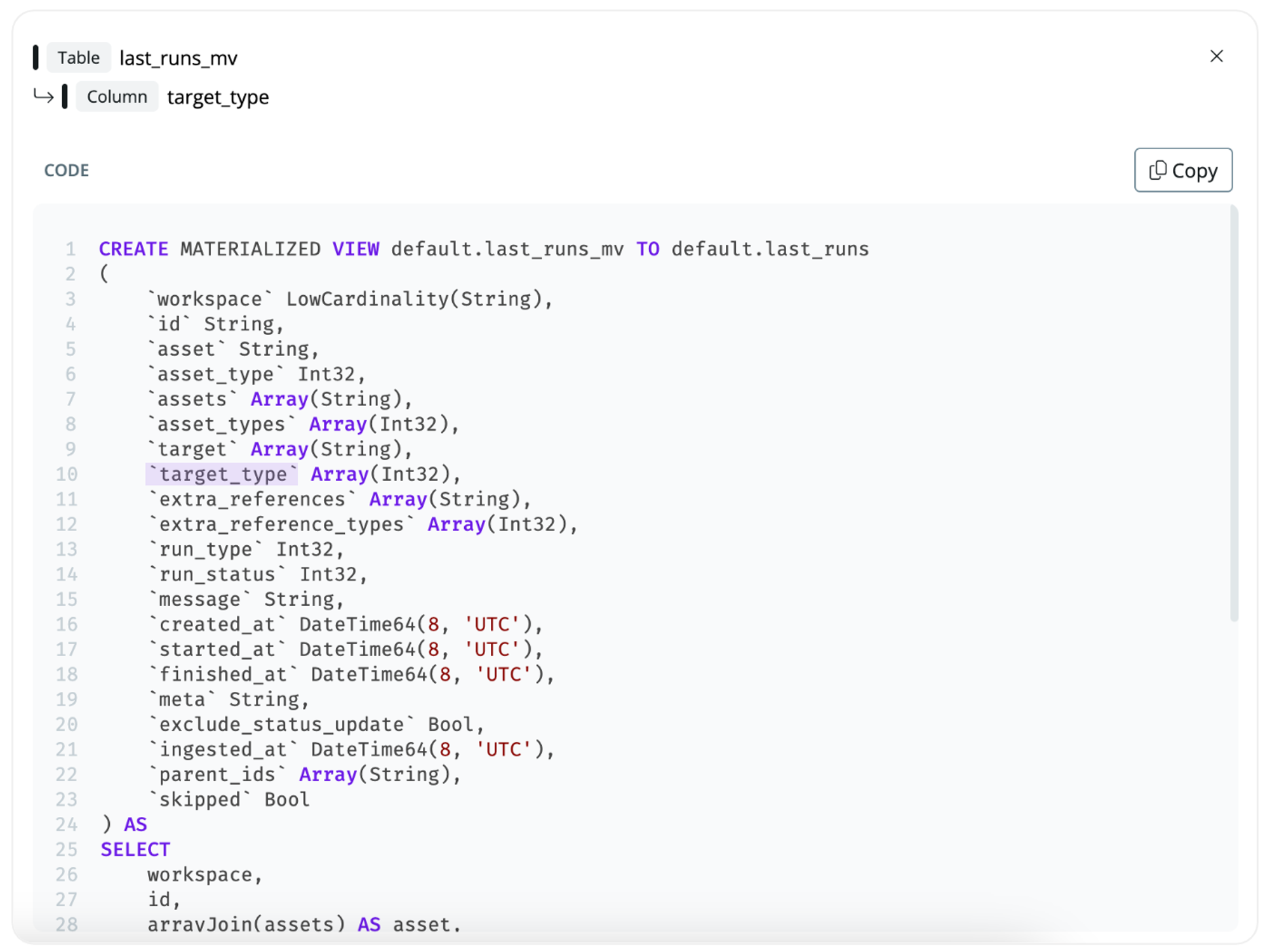
Click on a column in one of the downstream assets to see how the column was derived in code
Upstream lineage to trace down the issue’s root cause
-
Navigate to the most downstream asset, such as a Looker dashboard you’re debugging.
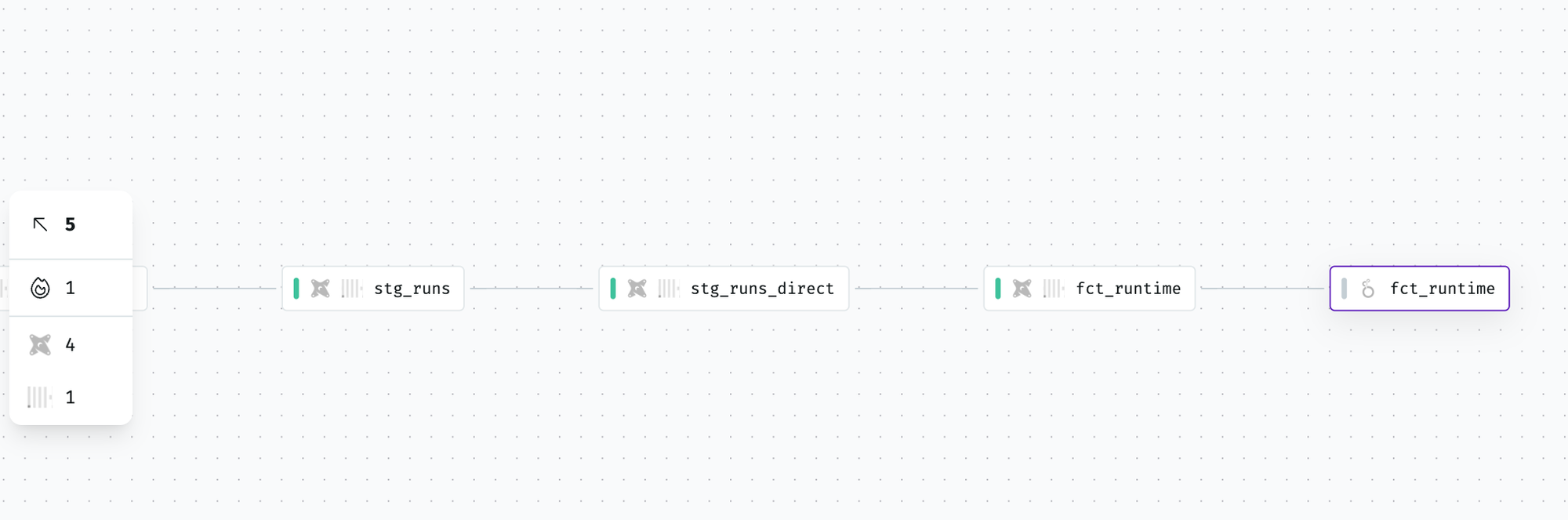
- To trace upstream issues, Use the left side menu bar to filter down on, e.g., quickly, dbt sources or data models with status errors.
-
Click the data asset and select
Filter by columnto trace where a specific column is used upstream.